
Analytics & Optimization
Understanding Clicks & Generating Clean Reports in URL Shortify
What Are "Real" Clicks?
When someone clicks your short link, URL Shortify records that visit and counts it as a click. But not all clicks are equal — some come from real people, others from bots, crawlers, or your own testing activity.
URL Shortify tracks two types of clicks to help you tell the difference:
Total Clicks vs. Unique Clicks
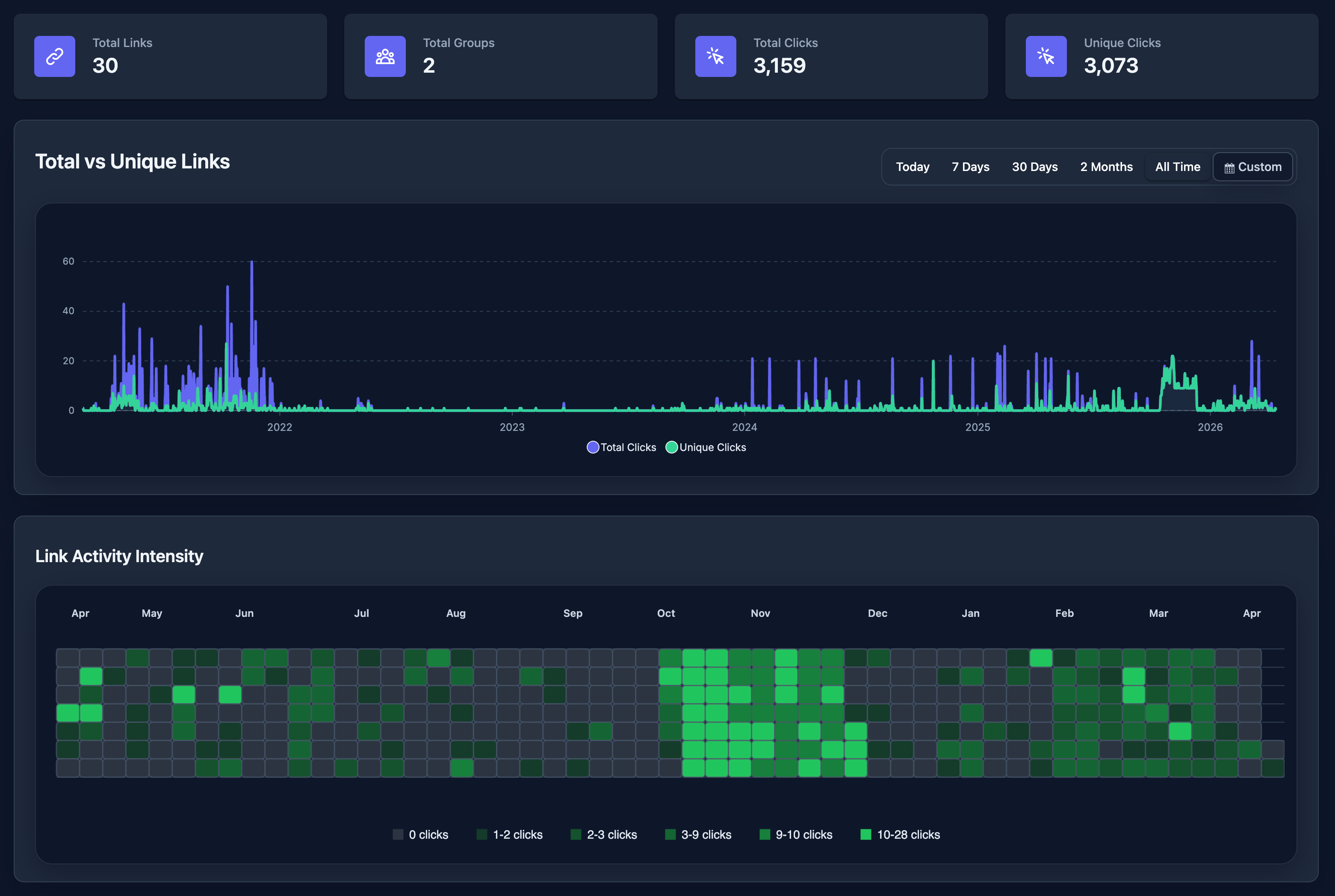
Total Clicks
The total number of times your short link was accessed — including repeat visits from the same person or device.
Example: If the same visitor clicks your link 5 times on different days, that counts as 5 total clicks.
Unique Clicks
The number of distinct visitors who clicked your link, based on their IP address. Repeat visits from the same IP are counted only once.
Example: If that same visitor clicks 5 times, it still counts as 1 unique click.
Which metric represents real activity?
- Use Unique Clicks when you want to know how many individual people discovered your link — great for measuring reach or campaign awareness.
- Use Total Clicks when you want to understand overall engagement, return visits, or volume of traffic driven.
Neither metric is "wrong" — they answer different questions. For most marketing use cases, unique clicks give a clearer picture of how many real people you reached.
How URL Shortify Handles Bots & Crawlers?
URL Shortify automatically detects and flags traffic from known bots, web crawlers, and automated scripts. These include search engine crawlers (Googlebot, Bingbot), link preview fetchers (Slack, Facebook, iMessage), uptime monitors, and other non-human agents.
When a bot visits your short link:
- The click is still recorded in the database with an
is_robotflag set toYes. - Bot clicks are excluded from your analytics charts and stats — the totals displayed in your dashboard, stats pages, and email reports show only human clicks.
This means the numbers you see are already filtered. You don't need to do anything special to remove bot traffic from your reports.
Note: URL Shortify uses user-agent detection to identify bots. While it catches the vast majority of automated traffic, highly sophisticated bots that mimic browser behavior may occasionally slip through. This is a limitation shared by all web analytics tools.
Filtering Out Test Clicks
During setup or testing, you may click your own links a few times. These clicks from your own IP will appear in your analytics.
How to exclude bot clicks and test clicks from your reports?
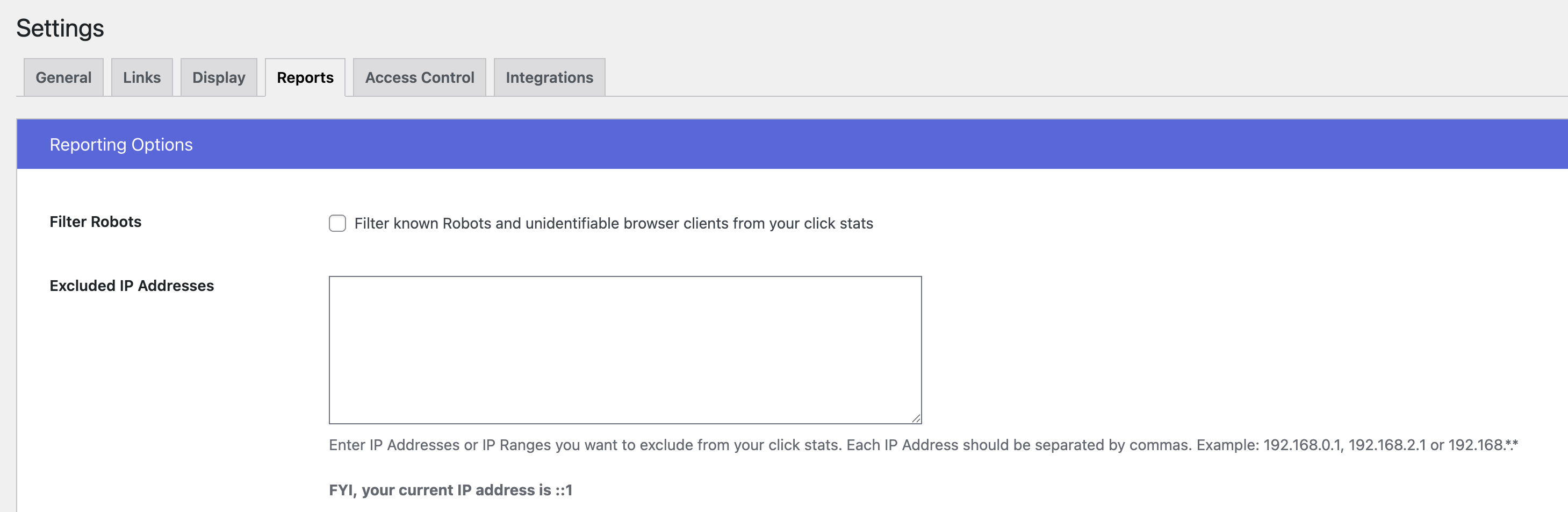
There is a setting called "Filter Robots" using which you can exclude bot clicks from your stats. This setting is enabled by default, so you don't have to do anything to filter out bot traffic.
Also, you can exclude click tracking from your own IP address by adding it to the "Exclude IPs" list in the settings. This will prevent your test clicks from being recorded in the first place.
Use Date Filters
After your testing period is over, filter your stats to start from the date your link went live. URL Shortify offers these built-in time filters:
| Filter | What it Shows |
|---|---|
| Today | Clicks from today only |
| Last 7 Days | Rolling 7-day window |
| Last 30 Days | Rolling 30-day window |
| Last 60 Days | Rolling 60-day window |
| All Time | Every click since the link was created |
| Custom (PRO) | Any date range you choose |
Use Custom Date Ranges (PRO)
If you want to exclude a specific testing window (e.g., the first 2 days after you created the link), use the Custom date filter on the Link Stats or Group Stats page. Set the start date to when real traffic began and the end date to today.
This is the most precise way to see clean, production-level data.
Exporting Clean Reports
URL Shortify lets you export your click data as a CSV file for use in spreadsheets, presentations, or sharing with clients.
What's Included in the Export
Each row in the exported CSV represents one click event and includes:
- Date & Time — When the click occurred
- Short URL — The short link that was clicked
- Destination URL — Where the visitor was sent
- Device — Desktop, Mobile, or Tablet
- Browser — Chrome, Firefox, Safari, etc.
- OS — Windows, macOS, Android, iOS, etc.
- Country — Country of the visitor (based on IP geolocation)
- Referrer — The website or source the visitor came from
- Robot — Whether the click was flagged as bot traffic
How to Export?
- Open the Stats page for a link or group.
- Go to Clicks Details and click the Export CSV button.
- A CSV file will download automatically.
Bot clicks (
is_robot = Yes) are included in the raw CSV export so you have full data. To generate a clean report for a client, filter the exported CSV in your spreadsheet tool (e.g., filter out rows where the "Robot" column is "1").
Generating a Date-Filtered Export
To export only clicks from a specific period:
- Apply your desired time filter (e.g., Last 30 Days, or a Custom date range for PRO users).
- Export — the download will reflect the filtered view.
Reading Your Dashboard Metrics
The URL Shortify dashboard gives you a quick snapshot across all your links:
| Metric | What It Means |
|---|---|
| Total Links | Number of short links you've created |
| Total Clicks | All human clicks across all your links (bots excluded) |
| Unique Clicks | Distinct visitors across all links (one count per IP per link) |
| Activity Graph | Click volume over time — hover to see daily totals |
The Link Stats page breaks this down per link, adding browser, device, country, and referrer breakdowns so you can understand exactly where your traffic is coming from.
Quick Tips for Clean Reporting
- Wait 24–48 hours after creating a new link before reviewing stats — initial link previews from social platforms (Slack, WhatsApp, Twitter) generate bot clicks that inflate early numbers.
- Use Unique Clicks for reach reports — "We reached X unique visitors" is more meaningful to clients than total click volume.
- Use Custom Date Ranges (PRO) to align reports with your campaign dates exactly.
- Compare Total vs. Unique — A large gap between the two means your audience is returning repeatedly, which is a positive engagement signal.
- Filter the exported CSV by
Robot = 0for client-ready reports with zero bot noise.