
Link Management
What is Link Tracking, Why Track Links & How to Do It with URL Shortify
What is Link Tracking?
Link tracking involves monitoring how your URLs perform by collecting data on clicks, their sources, and user behavior. This information helps evaluate marketing campaign success, enhance user engagement, and support evidence-based decision-making.
Key Features of Link Tracking
- Click Count: Track the number of clicks each link receives.
- Geographical Data: Identify the geographical location of your audience.
- Referral Source: Determine the source of traffic to your links.
- Device Information: Understand the devices and browsers used by your audience.
Why Track Links?
Measure Campaign Performance
- Effectiveness: Determine which marketing channels and campaigns are most effective by comparing click-through rates.
- ROI Calculation: Calculate the return on investment (ROI) of different marketing efforts by tracking link performance.
Optimize User Experience
- Content Relevance: Understand what content resonates with your audience to tailor future campaigns accordingly.
- Targeting: Use geographical and device data to target your audience more effectively.
Improve Conversion Rates
- Path Analysis: Analyze user behavior to optimize the path to conversion and improve the overall conversion rate.
- A/B Testing: Conduct A/B tests by tracking different links to determine which performs better.
Fraud Prevention and Security
- Click Fraud Detection: Monitor abnormal patterns in link clicks to detect potential click fraud.
- Security Monitoring: Track and analyze the security of your links by monitoring traffic sources.
How to Track Links with URL Shortify?
Follow the below steps to enable tracking for a specific link.
- Go to URL Shortify > Links
- Create a new link
- Enable Tracking parameter to track link
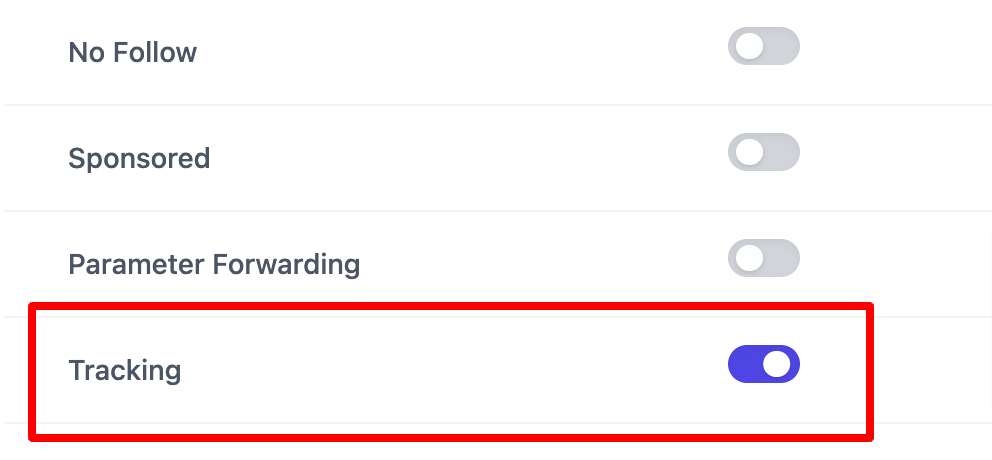
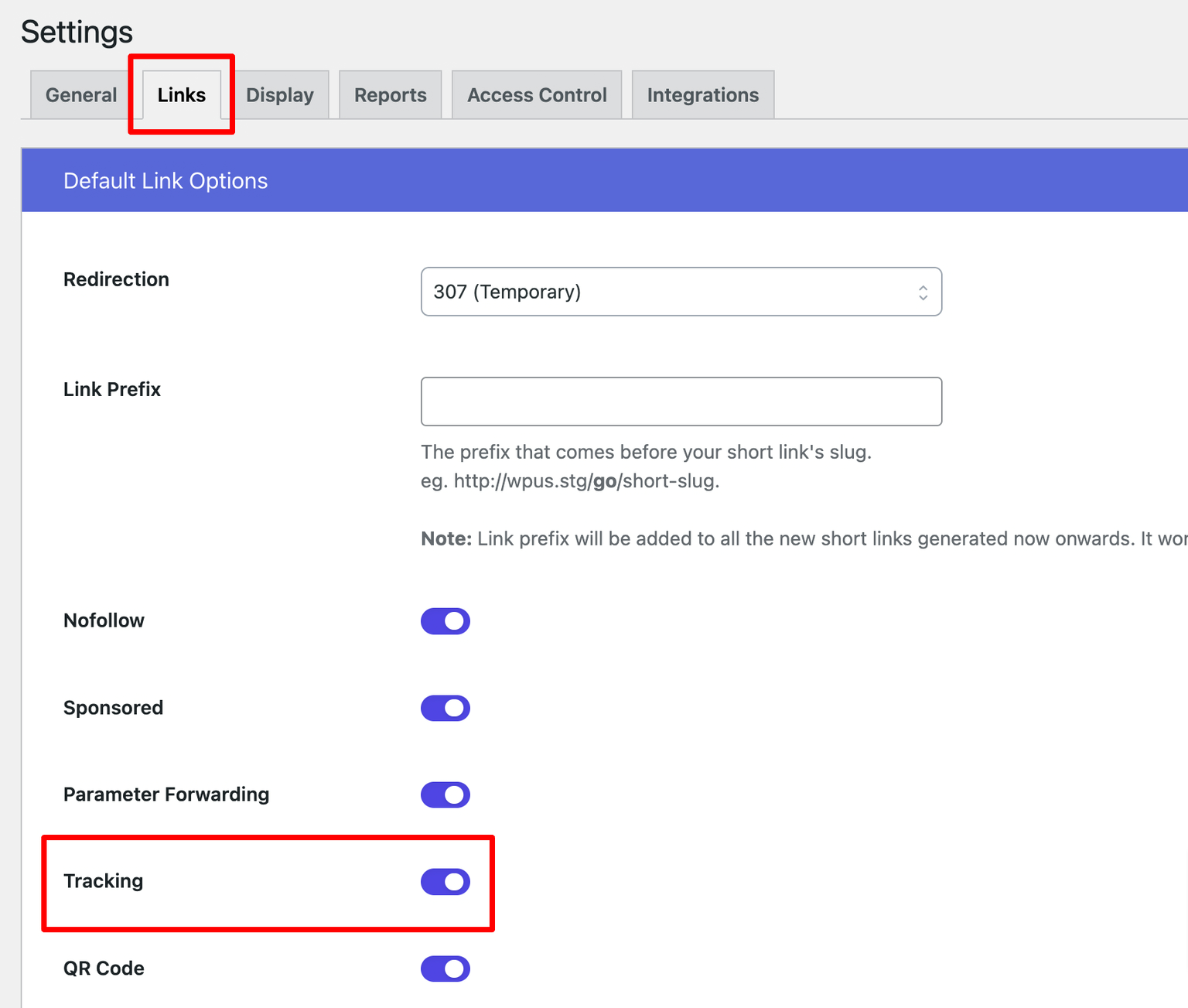
Administrators can also configure tracking settings globally for all links:
- Go to URL Shortify > Settings
- Go to the Links section
- Enable the Tracking option & save settings.
How to access the tracking report?
To access the tracking report, follow the below steps.
- Go to URL Shortify > Links
- Click on Clicks or Statistics link

What to consider while accessing the statistics?
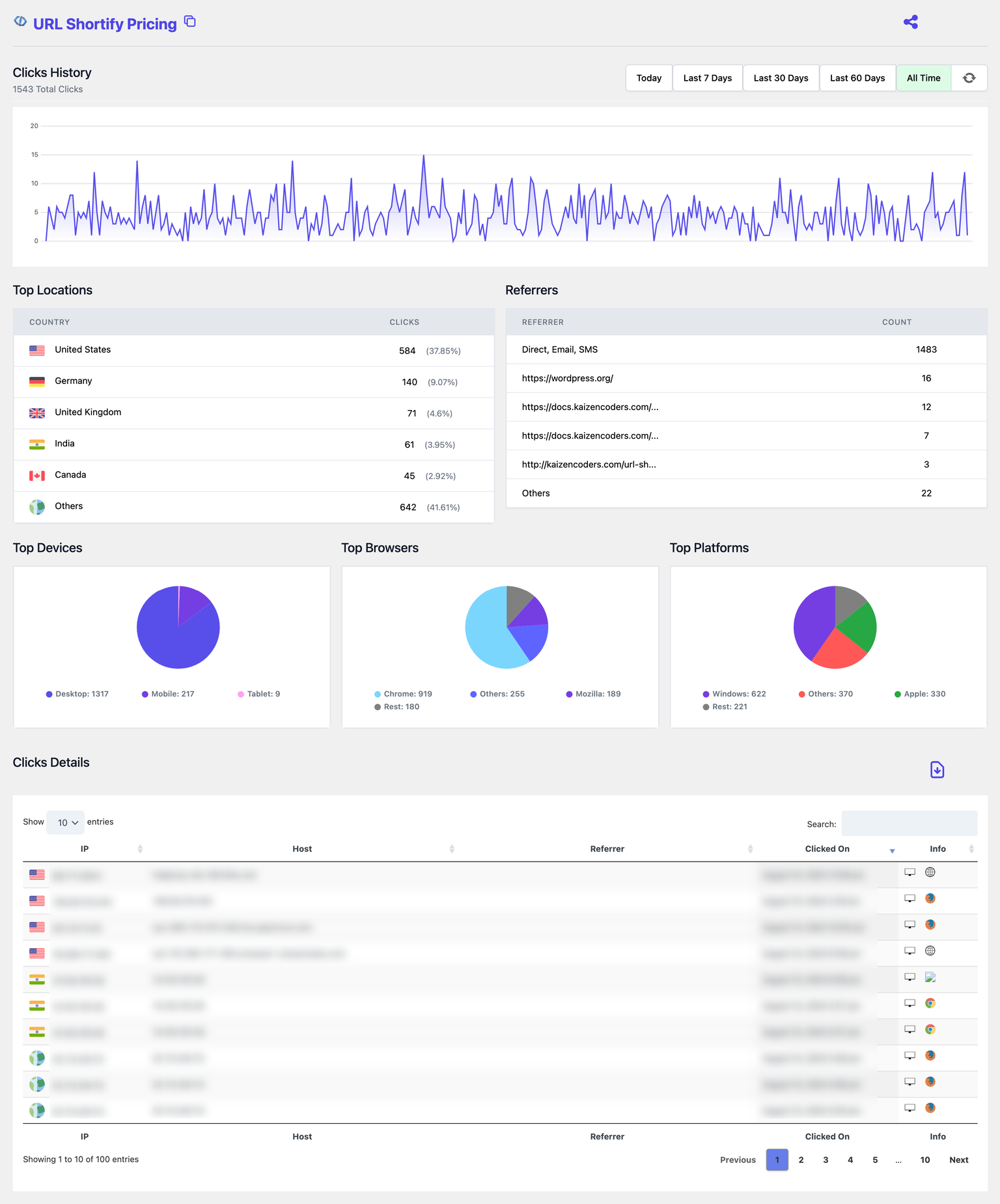
- Review Key Metrics:
- Total Clicks: View the total number of clicks your link has received.
- Geographical Data: Analyze the geographical distribution of clicks.
- Referral Sources: Identify where your traffic is coming from (e.g., social media, email, etc.).
- Device Information: Check which devices and browsers your audience is using.
- Export Data:
- For further analysis, export the link tracking data into CSV or other formats supported by URL Shortify PRO.
Best Practices for Link Tracking
- Set Clear Goals: Define what you want to achieve with your links and what metrics you will track.
- Regular Monitoring: Regularly check the performance of your links to make timely adjustments.
- Data-Driven Decisions: Use the insights from link tracking to make informed decisions on marketing and content strategies.
- A/B Testing: Utilize link tracking to perform A/B tests and optimize for the best performance.
FAQ
Can I track links from different sources?
Yes, URL Shortify allows you to track links from multiple sources and provides detailed analytics on each.
How can I use the data from link tracking to improve my campaigns?
Use the data to identify successful campaigns, target specific demographics, and optimize content based on user behavior and preferences.
Upgrade to URL Shortify PRO
The free version stores only 7 days of tracking information. Upgrade to URL Shortify PRO for complete historical link analysis.