
Advanced Features
One-Click Import from Other Plugins
If you're switching to URL Shortify from another link-management or redirect plugin, you don't have to export to CSV and reshape columns. URL Shortify reads directly from the source plugin's database table and creates matching short links — usually in a single click.
Supported source plugins
URL Shortify can import from any of these WordPress plugins:
- Pretty Links
- ThirstyAffiliates
- Redirection
- 301 Redirects (EPS)
- Simple 301 Redirects
- URL Shortener by MyThemeShop
- Short URL
Each importer reads the source plugin's own database table directly, not a CSV export. The basics — slug, target URL, redirect type, and nofollow/sponsored flags where the source plugin supports them — all transfer in one pass.
For source plugins that organise links by category (Pretty Links, URL Shortener by MyThemeShop), URL Shortify creates matching Groups during the import and assigns each link to its original group automatically.
How to import
The import page only shows plugins URL Shortify detects on your site. If you don't see your source plugin listed, it's because that plugin isn't currently installed and active — see Troubleshooting below.
1. Open the Tools page
Go to URL Shortify → Tools. The default tab is Import.
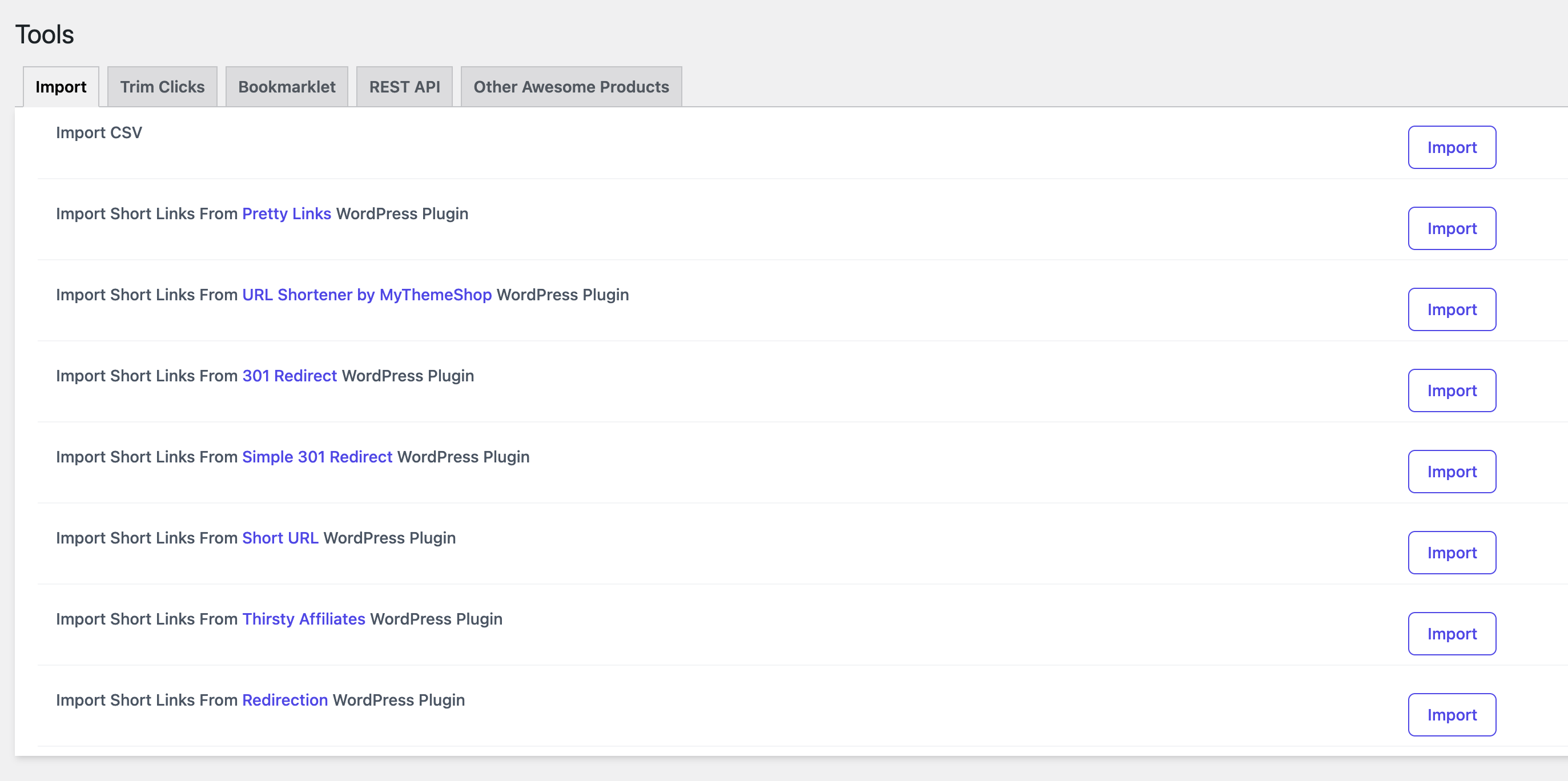
2. Find your source plugin
The page lists every supported plugin that URL Shortify has detected on this WordPress install. Each detected plugin gets its own row with an Import button on the right.
If only Import CSV appears, none of the other plugins were detected.
3. Click Import
Click the Import button next to your source plugin. URL Shortify reads the source plugin's table, creates one short link per record, and shows a success notice when finished:
Import successfully completed!
If anything goes wrong (table missing, permission error, malformed records), you'll see an error notice instead — no partial state is left behind.
What to do after the import
Three things to check before deleting the source plugin:
- Spot-check five links. Open the URL Shortify links list and click through to your highest-traffic links in an incognito window. Confirm each redirects to the right destination with the right HTTP status.
- Compare counts. The links list shows the total count at the top. It should match (or be very close to) the count in your source plugin. Small discrepancies are normal if the source plugin had soft-deleted entries.
- Run Broken Link Checker. Catches anything that broke in transit. See Broken Link Checker.
Once everything looks right, you can deactivate the source plugin. Don't delete it for at least a week — that gives you a rollback path if a problem surfaces later.
What the import doesn't bring across
The importer focuses on link data. The following do not transfer:
- Click history. The per-click log (timestamps, referrers, countries) and the running click count from your source plugin don't come across — the source plugins use incompatible schemas for this. Going forward, URL Shortify tracks clicks normally on the imported links.
- Custom fields and source-plugin add-on data. ThirstyAffiliates Pro fields, Pretty Links Pro reporting metadata, and similar add-on storage stay where they are.
- Server-level redirects. If your source setup mixes WordPress-level redirects with
.htaccessor nginx rules, only the WordPress-level rules import. Server config stays where it is.
If any of these matter, run the import on a staging copy first and verify the gaps before committing.
Troubleshooting
"I don't see my plugin in the list"
URL Shortify only shows source plugins it can detect. Detection happens one of two ways:
- By database table. Pretty Links, MyThemeShop URL Shortener, EPS 301 Redirects, Short URL, and Redirection are detected by checking for their data tables.
- By active plugin slug. ThirstyAffiliates and Simple 301 Redirects are detected by checking the active-plugin list.
Either way, the source plugin must be installed AND activated at import time. If you've already deactivated or deleted it, reinstall and reactivate it before running the import.
"The Tools page shows only CSV import"
That means none of the seven supported source plugins were detected. Either you're not migrating from a supported plugin, or the source plugin isn't active. If you're migrating from something else, Import CSV is the fallback — export from your source, reshape columns, import.
"Some links didn't import"
URL Shortify de-duplicates by slug. If a slug already exists in URL Shortify (from a previous import or a manually-created link), the source-plugin record with the same slug is skipped — your existing link wins. If you're seeing fewer imports than expected and you've already run the importer once before, that's why.
If a real, working link didn't make it across on a first run, check its record in the source plugin — it's almost always a data issue (orphaned record, malformed slug) rather than an importer issue.
When to use CSV instead
One-click import is the right choice for any of the seven supported plugins. Reach for Import CSV only when:
- Your source plugin isn't on the supported list.
- You're migrating from a non-WordPress system (a hosted shortener, a custom database, a spreadsheet).
- You want to bulk-edit slugs or destinations during the migration — easier to do in a spreadsheet than after import.
Helpful Tip
You can run a one-click import more than once. If you import, then keep using the source plugin for a few more days, you can re-import to pick up the new links. URL Shortify de-duplicates by slug, so existing links won't be overwritten — only new ones get added.