
More Features
What is Favorite Links? How to use it in URL Shortify?
With Favorite Links in URL Shortify, you can easily mark and access your most important short links — all in one place.
Instead of searching through long lists every time, simply favorite the links you use most and find them instantly when you need them.
What Favorite Links Helps You Do:
- 📌 Pin your most important short links for quick access
- 🔍 Save time — no more endless scrolling
- 📊 Stay organized — separate your top links from the rest
- 🚀 Focus on what matters — campaigns, promotions, daily use links
Whether it’s a high-traffic campaign link, an affiliate URL, or your go-to landing page, Favorite Links keeps your key URLs right where you need them.
Add a Link to Favorites
To add a single link to your favorites, click the empty star icon (⭐) to the left of the link title in the Links list. The star turns filled (★) immediately, confirming the link has been added to your favorites.
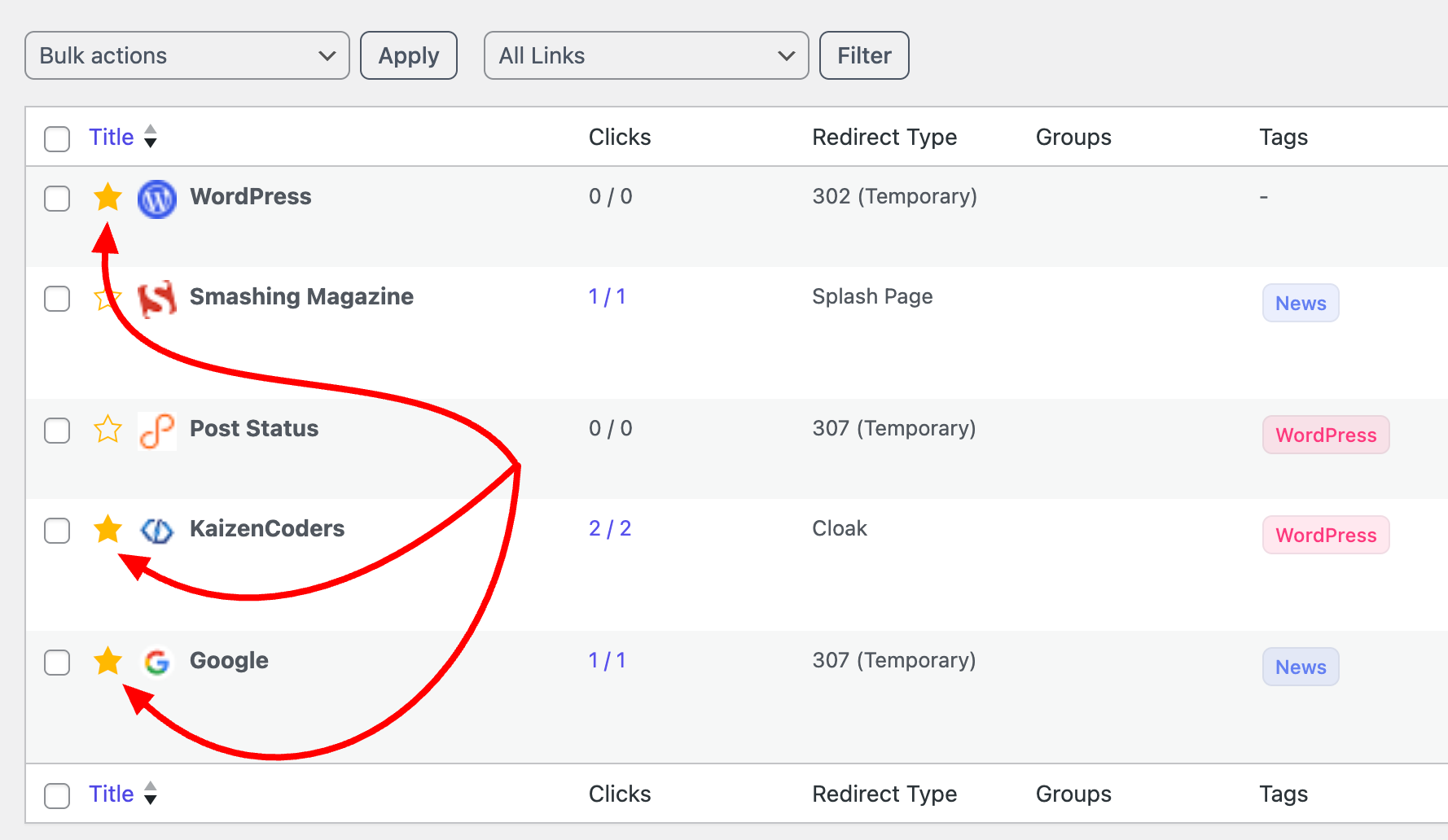
Steps:
- Navigate to URL Shortify > Links.
- Find the link you want to favorite.
- Click the ☆ (empty star) icon before to the link title.
- The star changes to ★ (filled star) — the link is now favorited.
The tooltip changes from "Add to Favorites" to "Remove from Favorites" once the link is starred.
Remove a Link from Favorites
To remove a link from your favorites, click the filled star icon (★) next to the link title. The star reverts to an empty star (☆).
Steps:
- Navigate to URL Shortify > Links.
- Find the favorited link (it will have a ★ filled star).
- Click the ★ (filled star) icon.
- The star changes to ☆ (empty star) — the link is removed from your favorites.
Note: Removing a link from favorites does not delete the link itself. It only removes the favorite bookmark.
Bulk Add to Favorites
You can add multiple links to your favorites at once using the Bulk Actions dropdown.
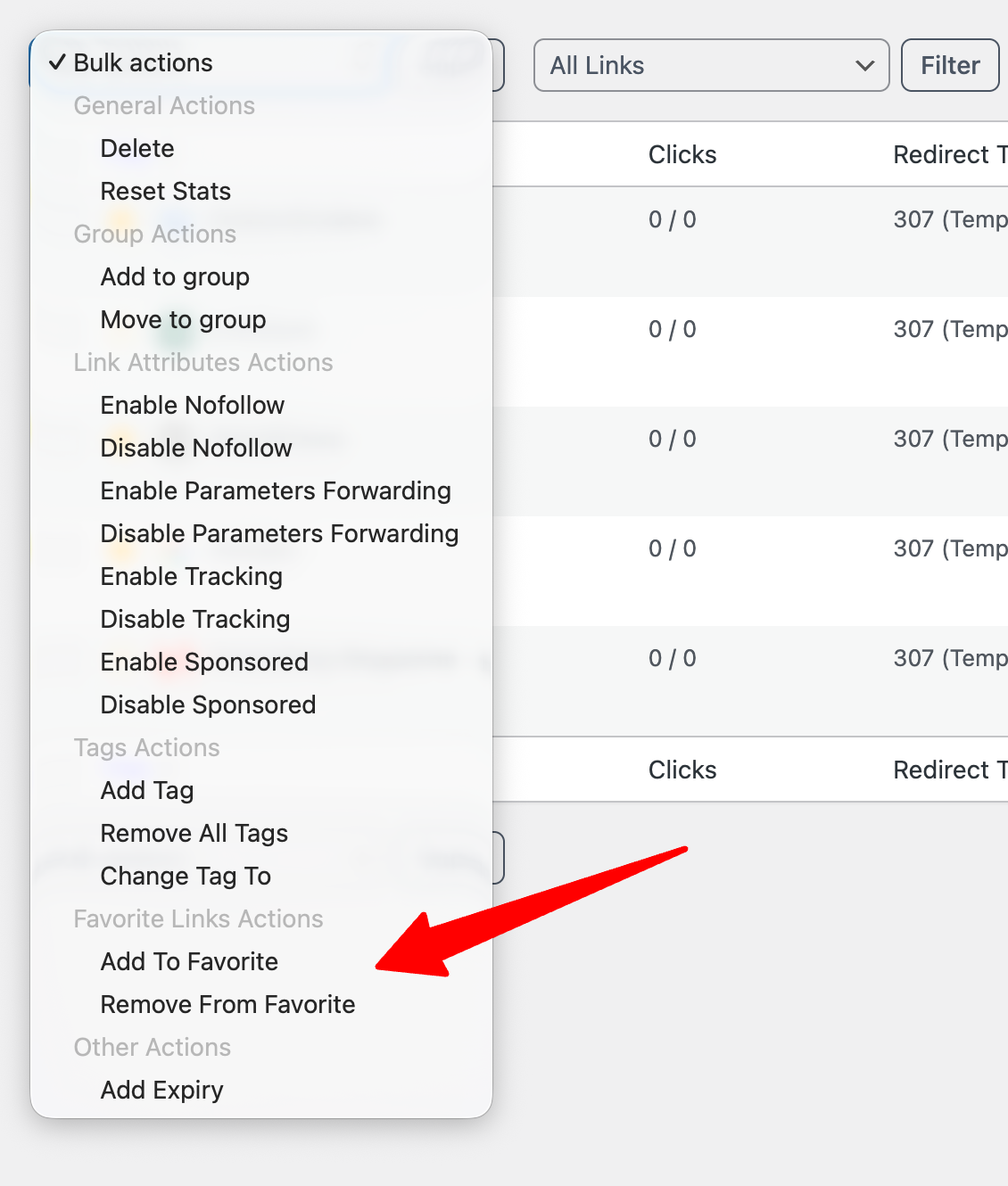
Steps:
- Navigate to URL Shortify > Links.
- Select the links you want to favorite by checking the checkboxes on the left.
- Open the Bulk Actions dropdown at the top (or bottom) of the table.
- Under the Favorite Links Actions group, select "Add To Favorite".
- Click Apply.
Bulk Remove from Favorites
You can remove multiple links from your favorites at once.
Steps:
- Navigate to URL Shortify > Links.
- Select the favorited links by checking their checkboxes.
- Open the Bulk Actions dropdown.
- Under the Favorite Links Actions group, select "Remove From Favorite".
- Click Apply.
Tip: Use the Favorite Links filter first to show only favorited links, then select all and remove them in one action.
Filter by Favorite / Non-Favorite
Use the filter dropdown to quickly view only your favorited links or only non-favorited links.
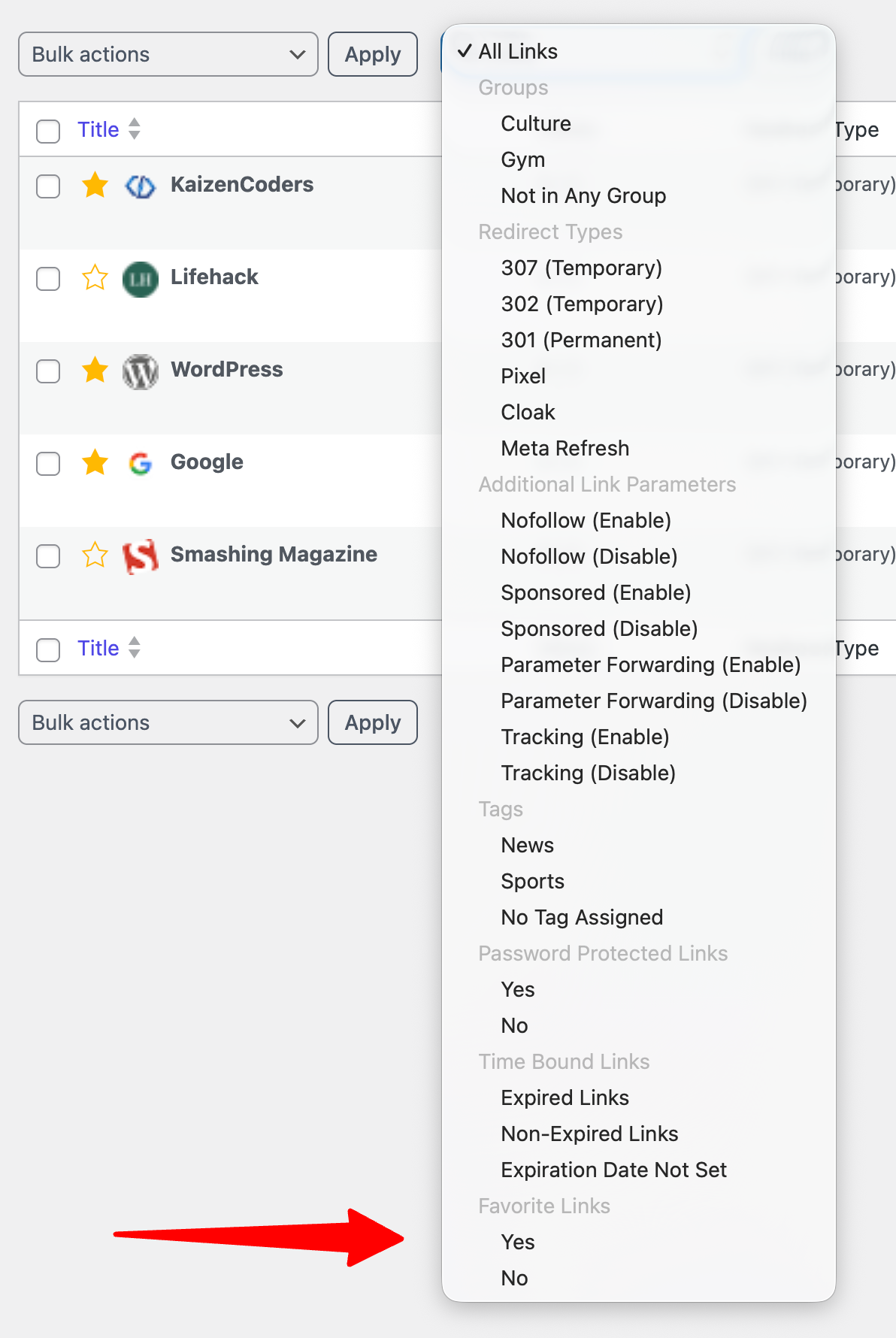
Steps:
- Navigate to URL Shortify > Links.
- Locate the Filter dropdown next to the Bulk Actions dropdown (above the table).
- Open the dropdown and scroll to the Favorite Links section.
- Select one of the following options:
- Yes — Shows only your favorited links.
- No — Shows only links that are not in your favorites.
- Click the Filter button.
- The links table updates to show the filtered results.
To clear the filter and see all links again, select "All Links" from the filter dropdown and click Filter.
Filter Options Summary
| Filter Option | Description |
|---|---|
| All Links | Shows all links (no filter applied) |
| Favorite: Yes | Shows only links you have marked as favorites |
| Favorite: No | Shows only links not in your favorites |
How It Works
Per-User Favorites
Favorites are stored per user. Each WordPress user has their own set of favorite links. If User A favorites a link, User B will not see that link as favorited in their view.
Automatic Cleanup
When a link is deleted from the system, its favorite entries are automatically removed for all users. No orphaned favorites remain in the database.
PRO Feature
Favorite Link is available in the URL Shortify PRO