
How-To Guides
How to do search and replace text in WordPress?
Search and replace is a powerful feature of Update URLS that allows you to find specific URLs or text in your WordPress database and replace them with new values. This is especially useful when migrating a site, changing domain names, or updating content.
To do search and replace text using Update URLS, you can follow these steps:
- Go to
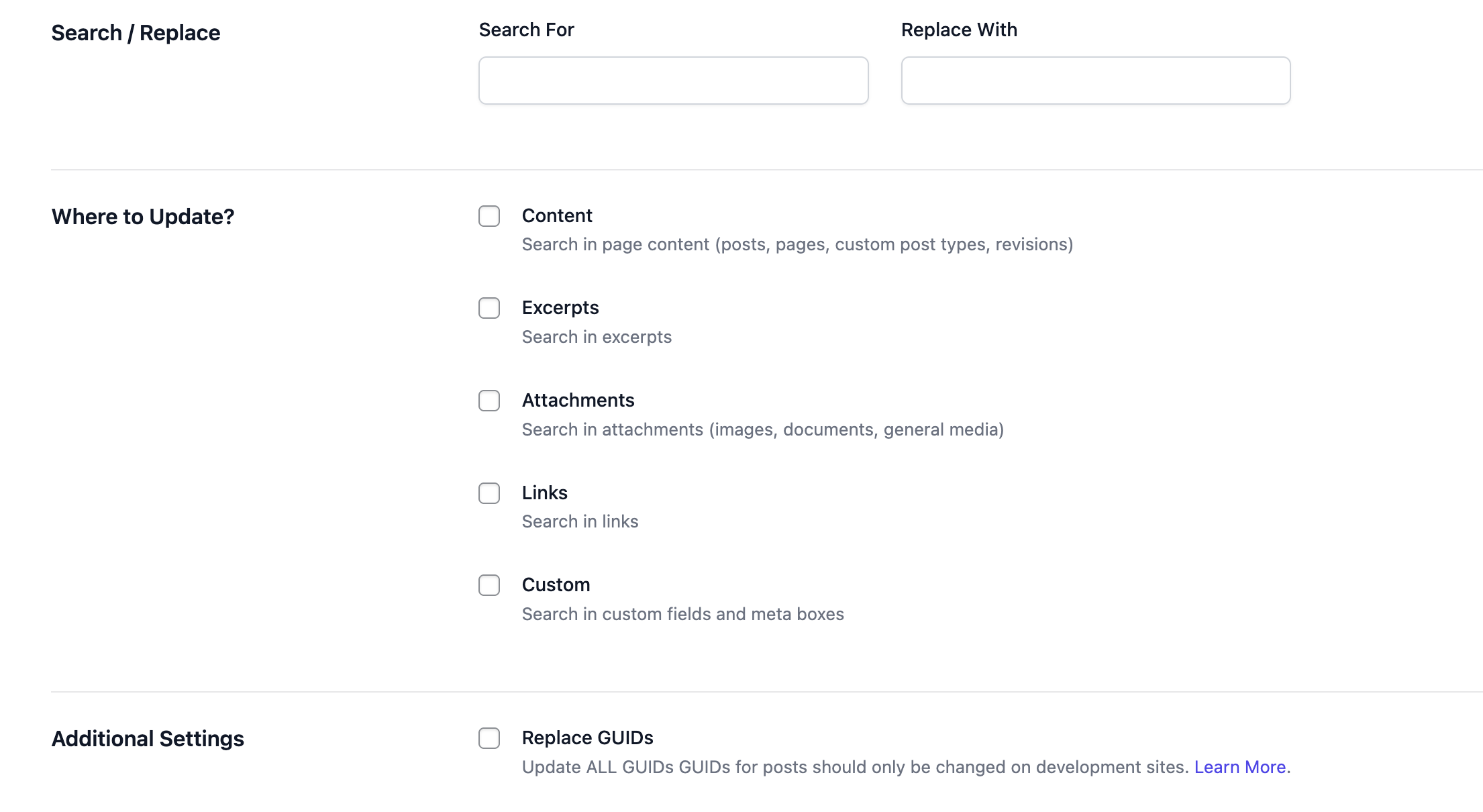
WordPress Admin > Update URLS. - In the Search For field, enter the old URL or text that you want to replace.
- In the Replace With field, enter the new URL or text that you want to use.
- Select the content areas where you want to apply the search and replace operation by checking the appropriate checkboxes (e.g., Content, Excerpts, Attachments, Links, Custom).
- Click the Run Search/Replace button to execute the operation.
- After running, you will see a success message with the number of replacements made in each section, or an error message if there were issues (e.g., no checkboxes selected, empty fields, no matches found).
- Note that in Free mode, changes are applied immediately and are not easily reversible, so it's important to take a backup before running the search and replace operation.
What It Updates?
You can choose one or more of these targets:
Content: Posts, pages, custom post types, revisionsExcerptsAttachments: Media GUIDs for attachmentsLinks: WordPress links tableCustom: Post meta / custom fields (serialized data supported)Replace GUIDs(additional option): Replaces all post GUIDs
Do search and replace across selected tables (PRO)
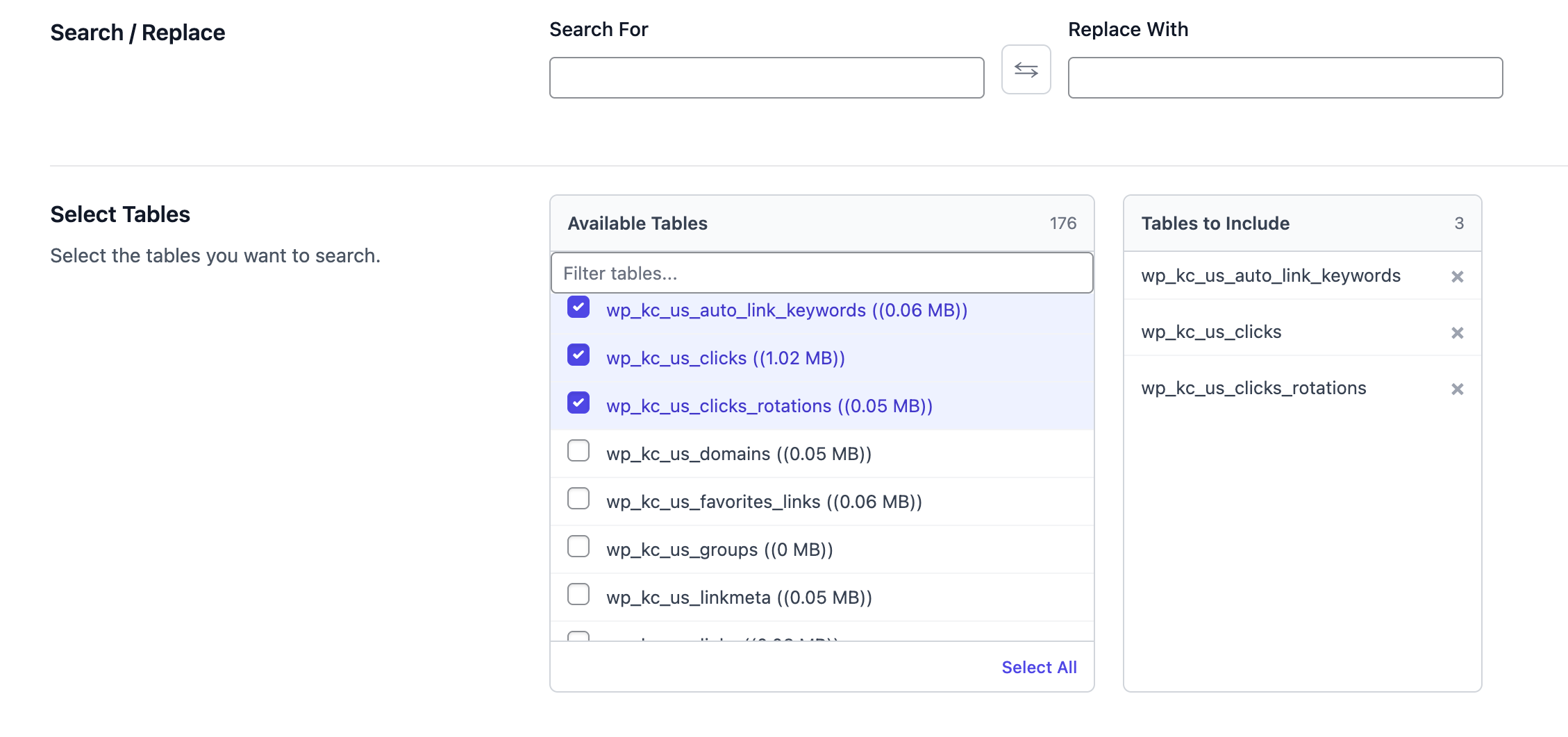
If you have Update URLS PRO, you can also run search and replace across selected database tables, not just predefined content areas. This allows you to target specific tables, including custom plugin/theme tables, while reducing the risk of affecting unrelated tables.
To do search and replace across selected tables in PRO mode, follow these steps:
- Open
WordPress Admin > Update URLS > Search / Replace. - Enter search and replace values in the Search For and Replace With fields.
- Select one or more tables in the Tables to Include multi-select table picker with filter.
- Configure additional settings such as case-insensitivity, replacing GUIDs, and running as a dry run (recommended first step).
- Click the Run Search/Replace button to execute the operation.
- Progress will be shown in a modal with table-by-table updates. After completion, you will get a summary and a details view. Non-dry-run operations are stored in History automatically.
- Best practice is to start with
wp_posts,wp_postmeta, andwp_options(or your prefixed equivalents) and add custom tables only when needed.
Before You Start
- Free mode applies changes immediately (no dry run).
- Changes are not easily reversible in Free mode. Take a full site backup. If something goes wrong, you can restore your site to its previous state. One click database export and import is available in Update URLS PRO.
- Enter exact values for Search For and Replace With (matching is case-sensitive in Free mode).
- Use Replace GUIDs only when you understand GUID implications.
Remember to take a backup before running search and replace operations, especially when targeting specific tables, to ensure you can restore your site if anything goes wrong.
In PRO mode, you have more control and flexibility over your search and replace operations, allowing you to safely update URLs or text across your WordPress database with confidence. Always review the results after running search and replace to ensure that the changes were applied correctly and that there are no unintended consequences. If you used the dry run option, you can analyze the results before applying the changes permanently.
If you encounter any issues or have questions about using search and replace in Update URLS, you can refer to the documentation or contact support for assistance.
By following these steps and best practices, you can effectively use the search and replace feature in Update URLS to update URLs or text across your WordPress site with ease and confidence.
Remember that search and replace operations can have a significant impact on your site, so it's crucial to proceed with caution and always have a backup in place before making any changes.
With Update URLS, you have the tools and flexibility to manage your site's URLs and content effectively, whether you're using the free version or the PRO version with advanced features.
By understanding how to use search and replace properly, you can ensure a smooth transition when migrating your site, changing domain names, or updating content without any issues.
Always test your search and replace operations on a staging site or a backup before applying them to your live site to minimize the risk of any unintended consequences. This way, you can ensure that everything works as expected before making changes to your production environment.
In summary, search and replace is a powerful feature of Update URLS that allows you to update URLs or text across your WordPress database efficiently. By following the steps outlined above and adhering to best practices, you can ensure a successful search and replace operation while minimizing risks and ensuring the integrity of your site.
If you have any further questions or need assistance with using search and replace in Update URLS, don't hesitate to reach out to the support team or consult the documentation for more information.
Remember that keeping your site updated and maintaining clean URLs is essential for SEO and user experience, so using the search and replace feature effectively can contribute to the overall health and performance of your WordPress site.
By leveraging the search and replace functionality in Update URLS, you can easily manage and update your site's URLs and content, ensuring that your site remains up-to-date and optimized for both users and search engines.
Always stay informed about updates and new features in Update URLS, as the plugin continues to evolve and improve, providing you with even more tools and options to manage your WordPress site effectively.
In conclusion, search and replace is a crucial feature of Update URLS that allows you to efficiently update URLs or text across your WordPress database. By following the steps and best practices outlined above, you can ensure a successful search and replace operation while minimizing risks and maintaining the integrity of your site. Always remember to take backups, test on staging sites, and consult documentation or support when needed to ensure a smooth experience with Update URLS.
By using the search and replace feature in Update URLS, you can keep your WordPress site updated and optimized, ensuring a better experience for your users and improved SEO performance. Whether you're using the free version or the PRO version with advanced features, you have the tools you need to manage your site's URLs and content effectively.
Always stay proactive in managing your site's URLs and content, and leverage the search and replace
feature in Update URLS to keep your site running smoothly and efficiently. With the right approach and best practices, you can ensure that your WordPress site remains up-to-date and optimized for both users and search engines, contributing to the overall success of your online presence.