
How-To Guides
How to Do One-Click Database Import and Export?
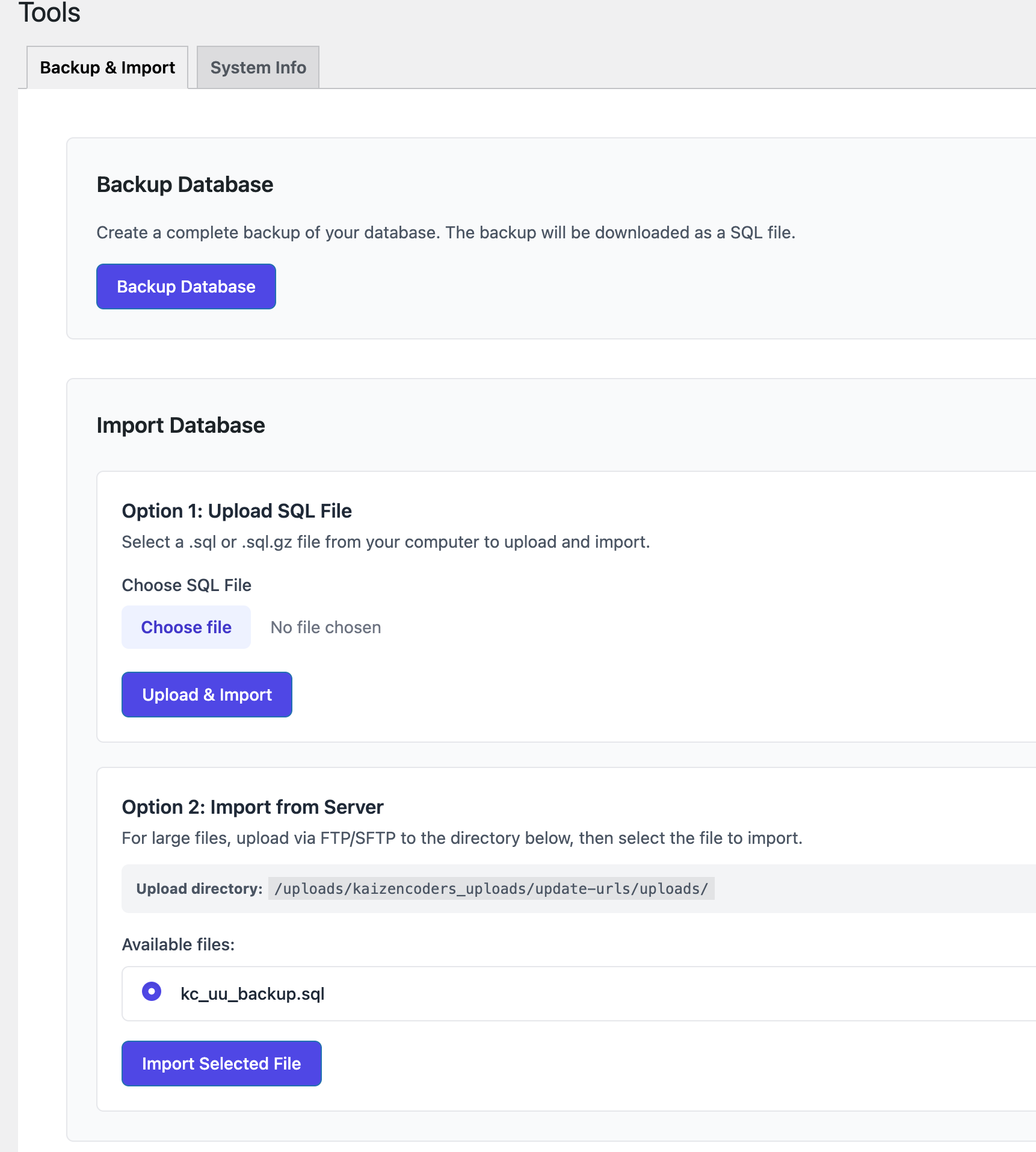
Use Backup/Import to protect your database before risky operations and to restore data when needed.
Backup Database
What It Does
- Exports your full database to a
.sqlfile - Optional gzip compression (
.sql.gz) if enabled in settings
Steps
- Go to
Update URLS > Backup / Import. - Click Backup Database.
- Wait for completion.
- Download starts automatically.
Optional: Chain a Profile After Backup
- You can choose a saved profile in Run search/replace profile on backup (optional).
- This is useful for automated backup-then-replace workflows.
Import Database
Supported Files
.sql.sql.gz
Upload Methods
- Direct upload in the UI
- Manual upload via FTP/SFTP to the path shown on screen
Steps
- Choose a file, or manually place one in the manual upload path.
- Click Import Database.
- Wait until import reaches 100%.
- Confirm success message.
Safety Notes
- Import overwrites database table content.
- Always verify environment (staging vs production) before importing.